
 How can we help you today?
If you encounter an error message while trying to connect or reconnect your X (formerly Twitter) account to Sharp Archive, follow the troubleshooting steps below to revoke previous app permissions and re-establish the connection.
Important: Revoking permissions in X clears conflicting session authorizations. You can immediately reconnect your account after completing these steps.
Content does not load on Wi-Fi
- When connected to Wi-Fi, the X feed or post may fail to load and display Something went wrong.
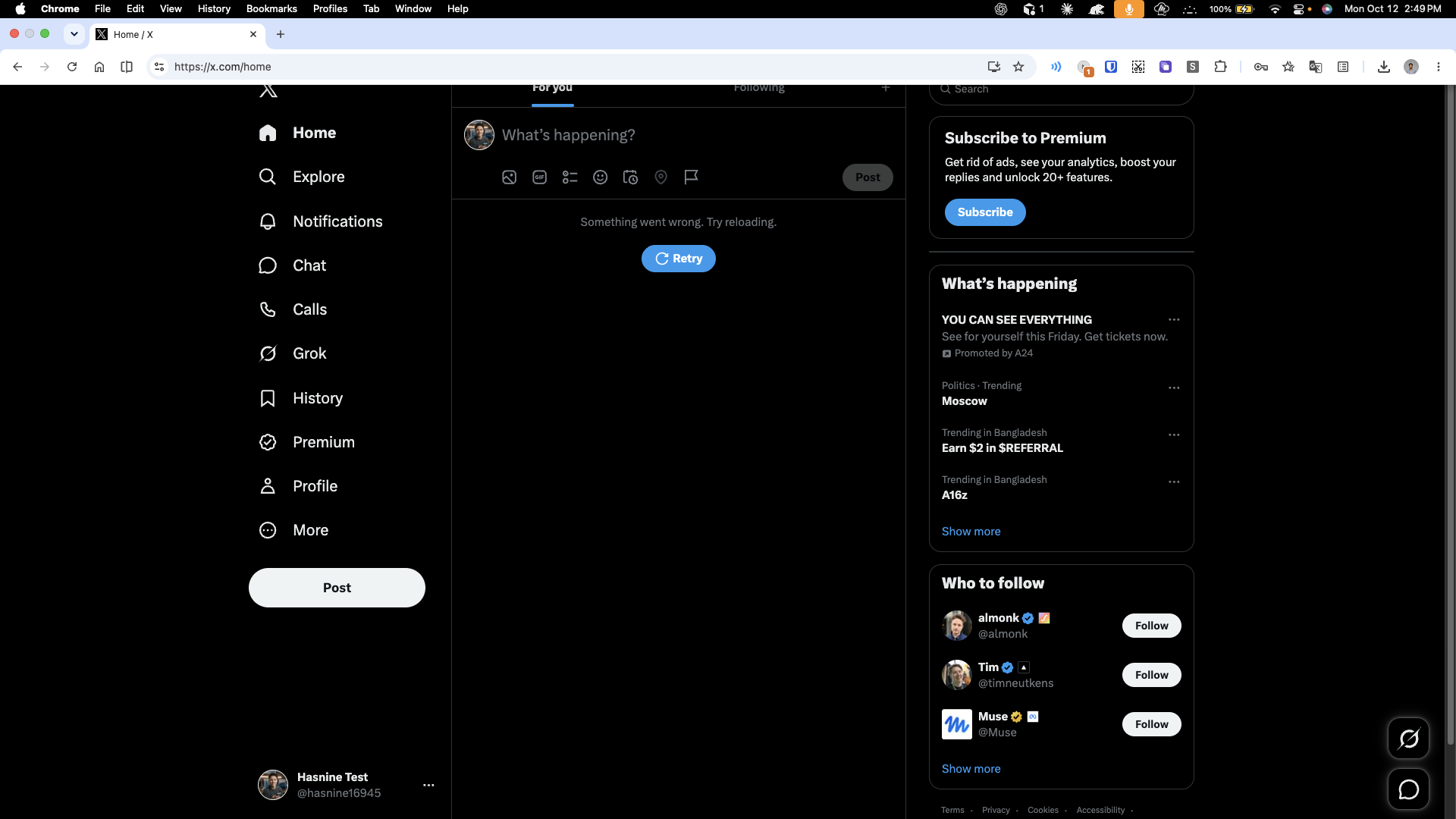
Switch to mobile data
- Turn off Wi-Fi, turn on mobile data (cellular hotspot), and refresh your browser. The content will now load properly.
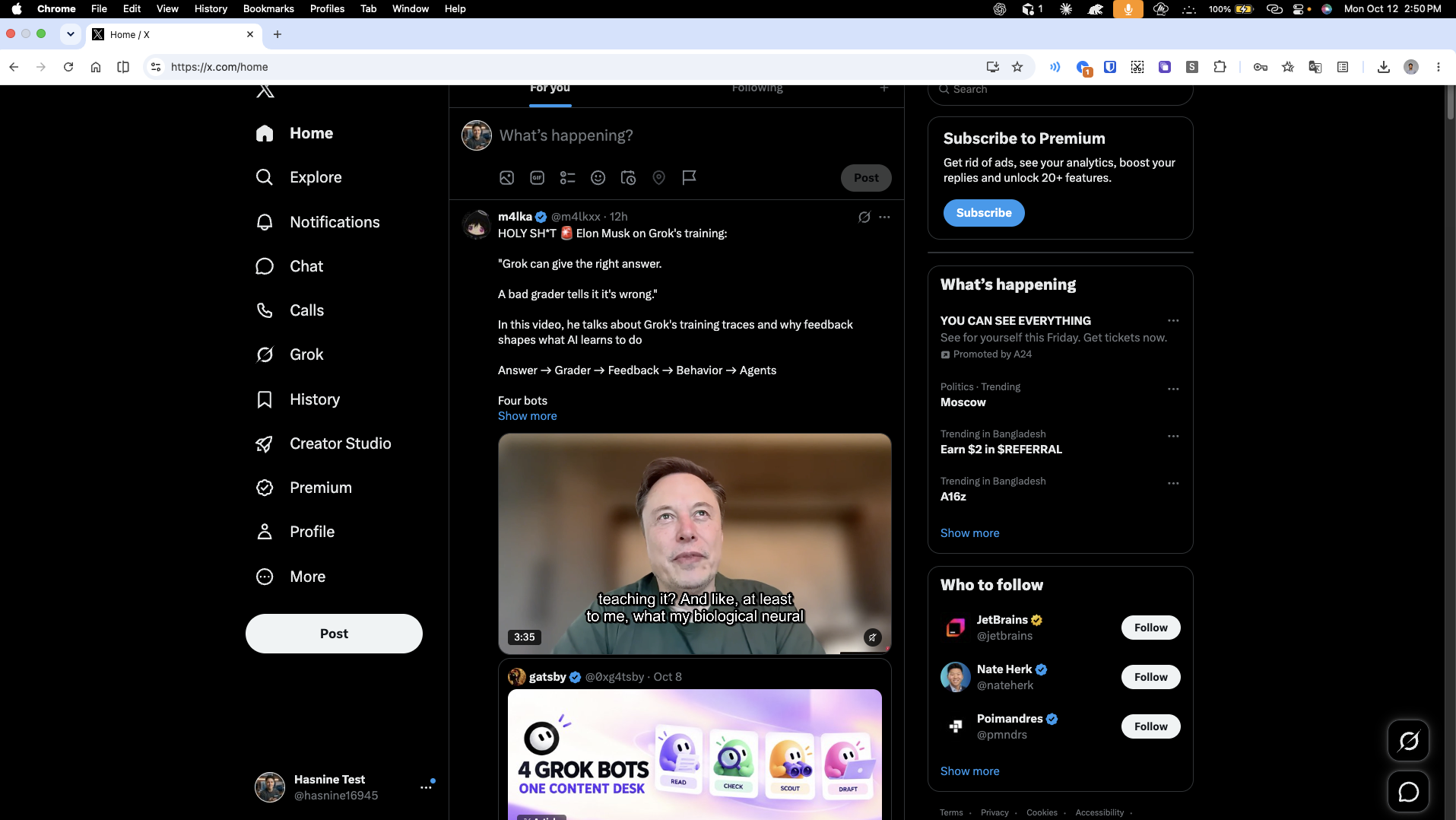
Open settings
- From the left-hand navigation menu on X, click More (…).
- Select Settings and privacy.
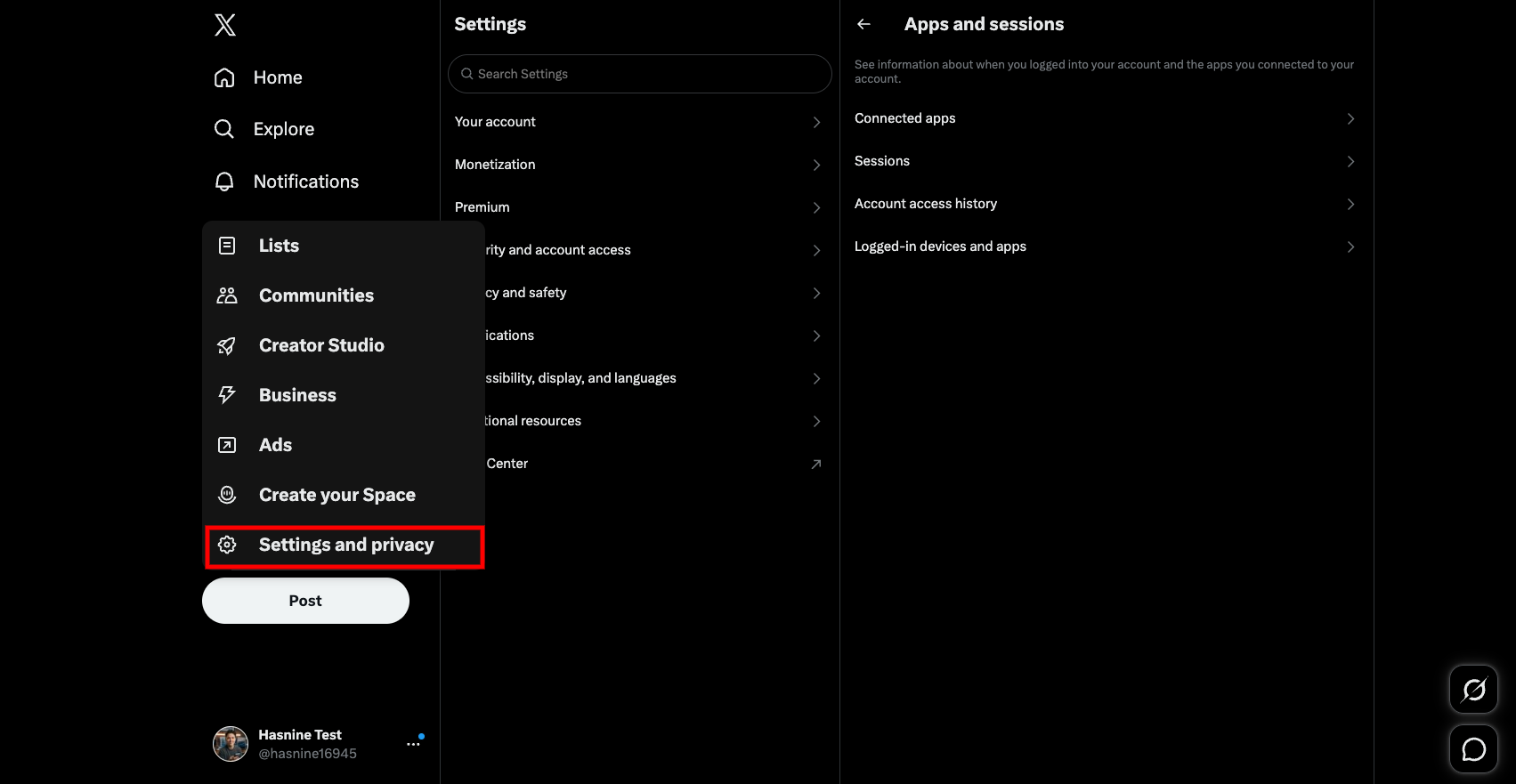
Find connected apps
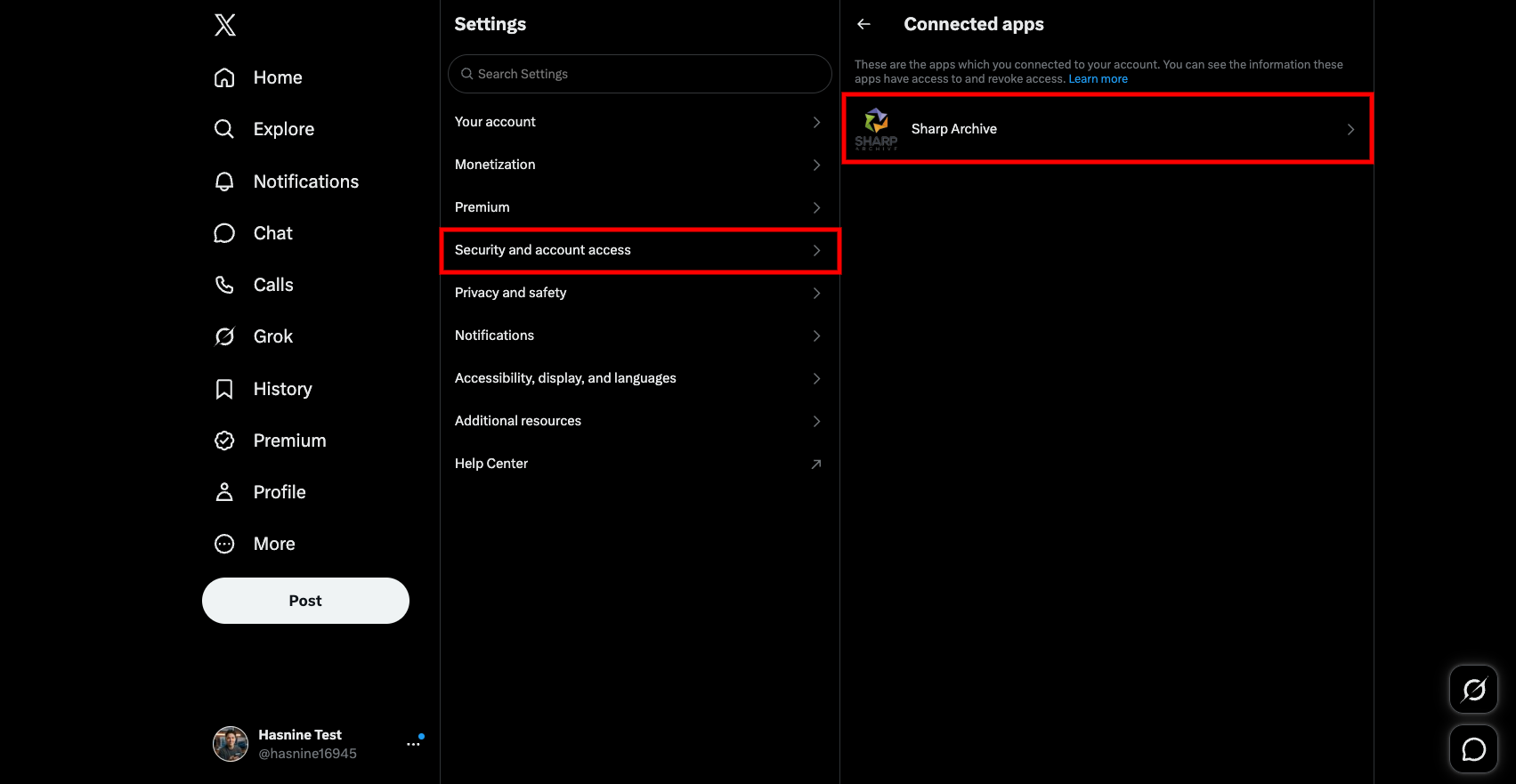
- Under the Settings panel, click Security and account access.
- Select Apps and sessions.
- Click Connected apps to view all authorized applications.
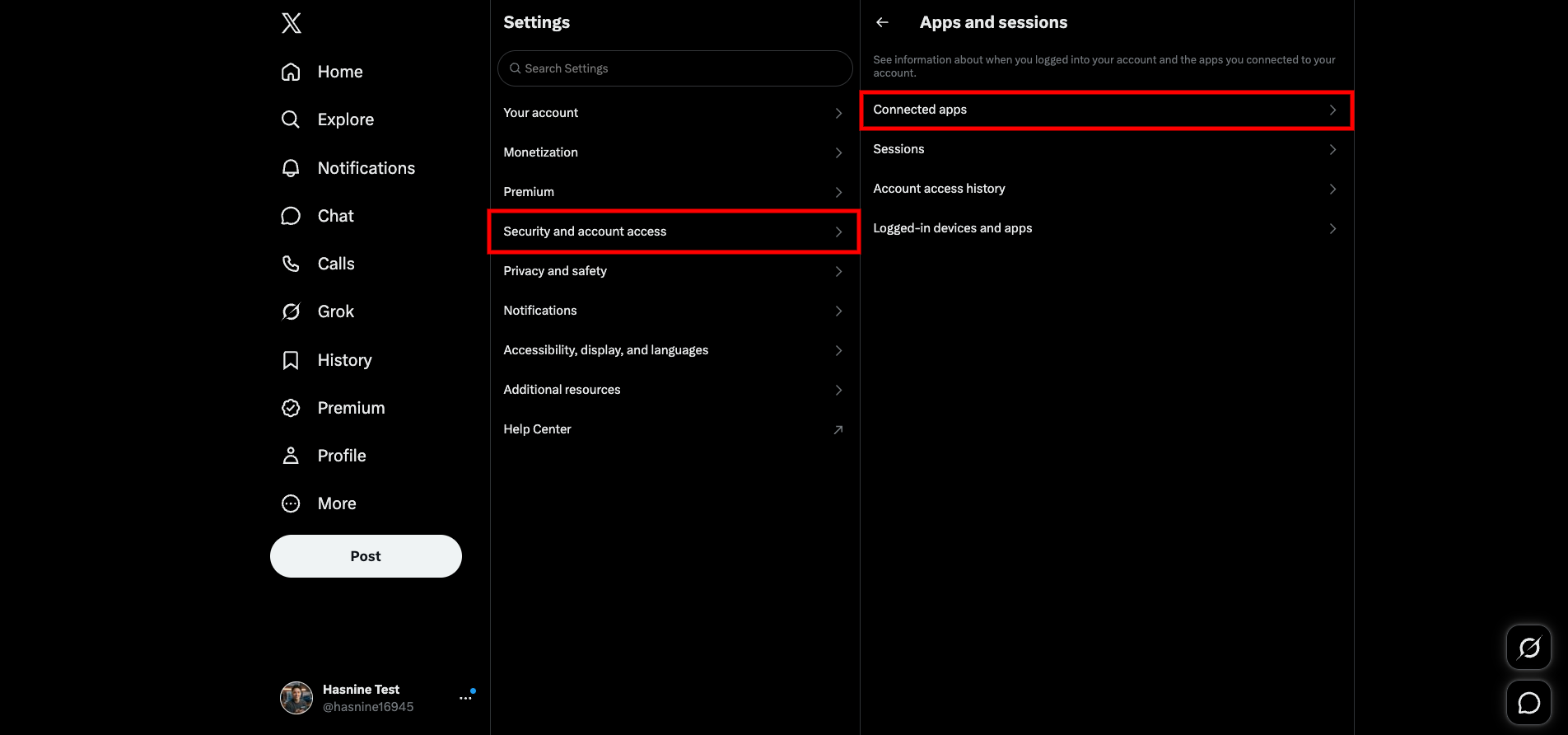
Reconnect SharpArchive
- In the Connected apps list, click on Sharp Archive.
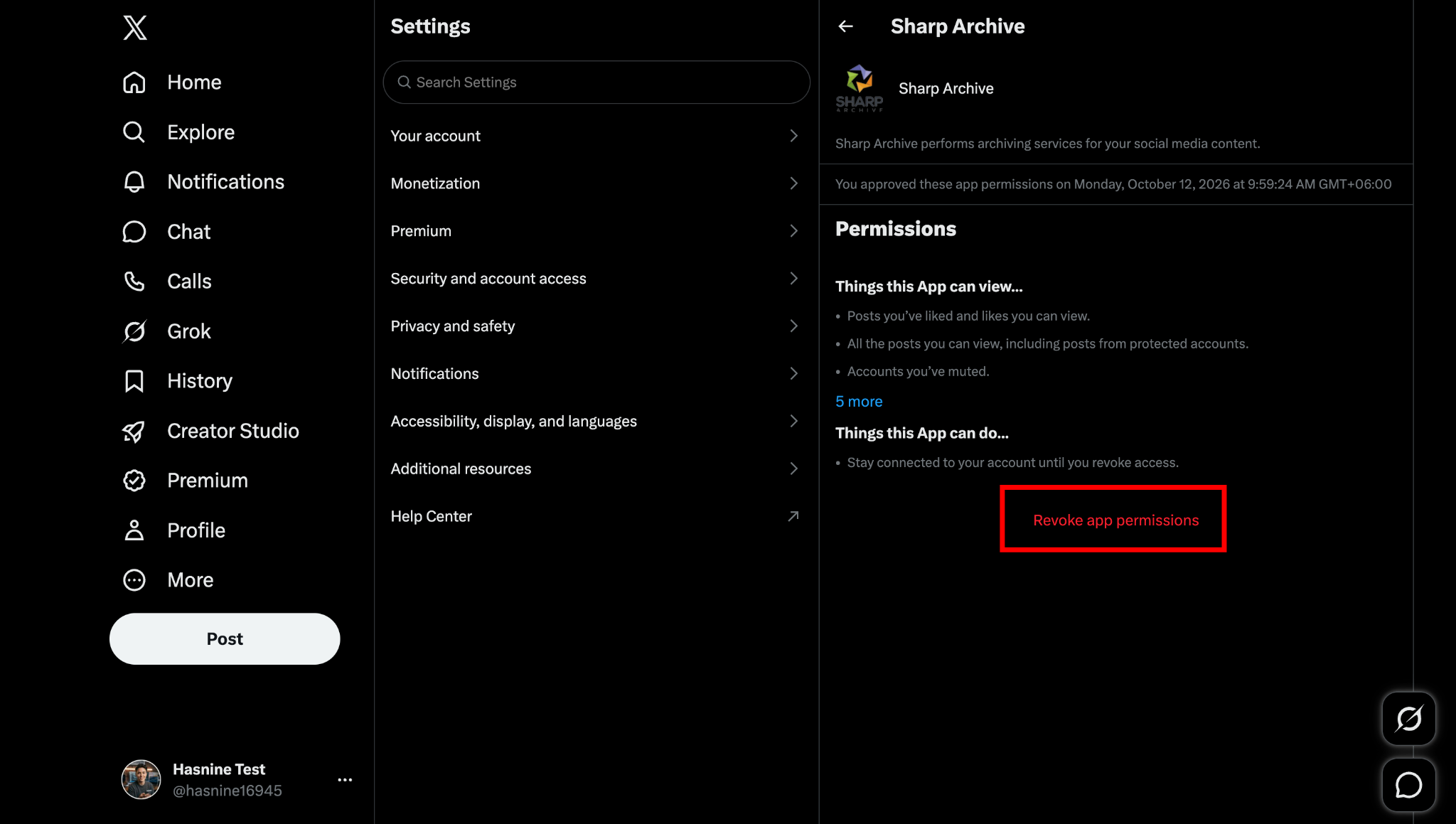
- Click Revoke app permissions to remove the existing authorization.
- Return to Sharp Archive and connect your Twitter / X account again.
Connected: Once permissions are revoked and re-authorized, your Twitter / X channel connects smoothly without authorization errors.