
 How can we help you today?
The user needs the Sharp Archive – SMS app and an invitation code from Sharp Archive.
Download & Install the SMS App
- Log in to your Sharp Archive account.
- From the Home page, select + Add More Channels.
- Select Text.
- Select the SMS icon. The SMS Onboarding modal will appear.
- Use the Download link provided in the modal to download the Sharp Archive – SMS app. The app download link is here.
- Complete the app installation process.
Get an Invitation Code
From the previously displayed SMS Onboarding modal:
- Enter your Mobile Number.
- Enter your Name.
- Enter your Email.
- Select Submit.
- An Invitation Code will be sent to your email address.
Log In to the SMS App
Open the Sharp Archive – SMS app and enter:
- Mobile Number: Your mobile number
- Invitation Code: The code received by email
- Allow the permissions the app asks for and log in.

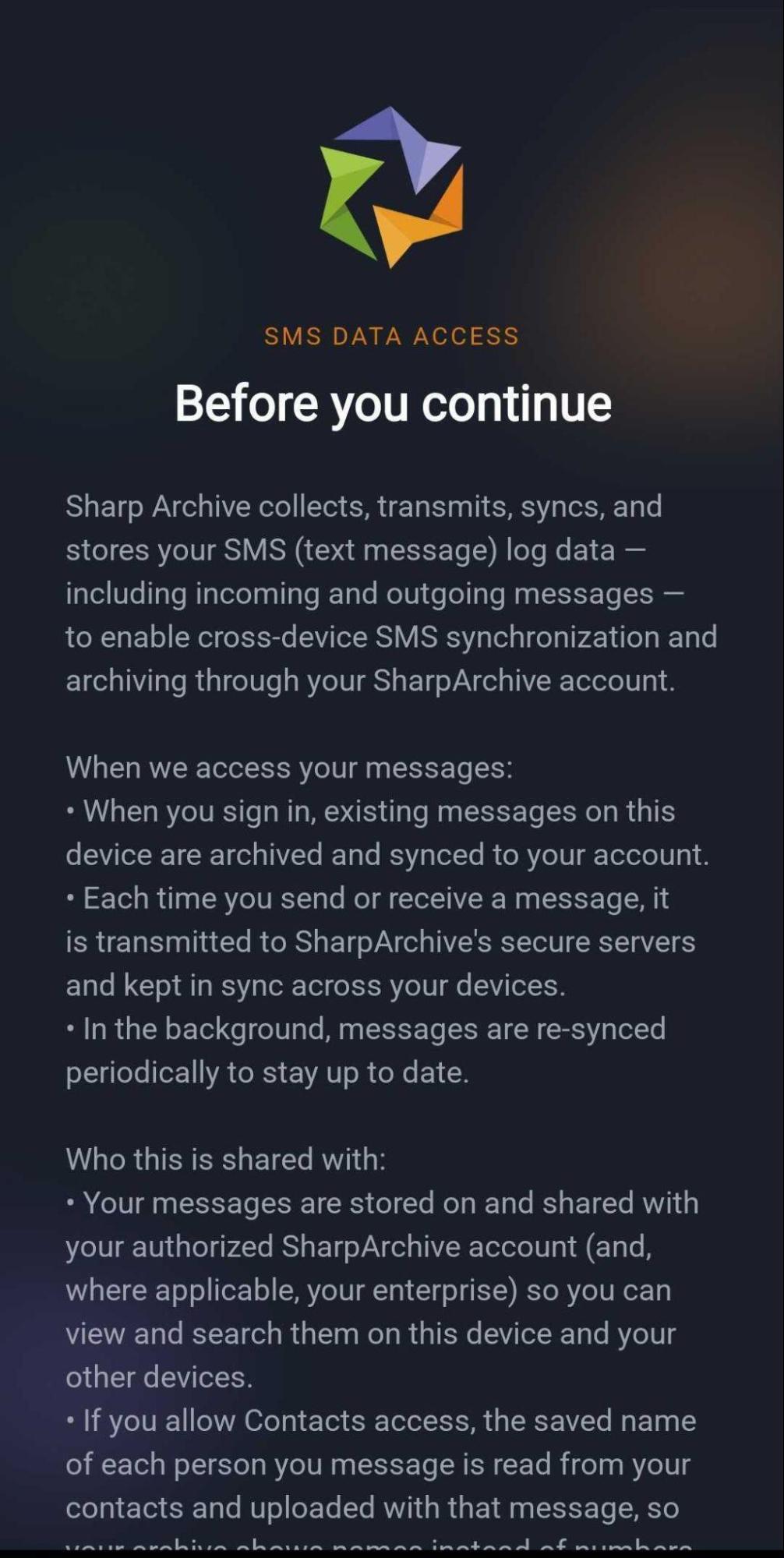
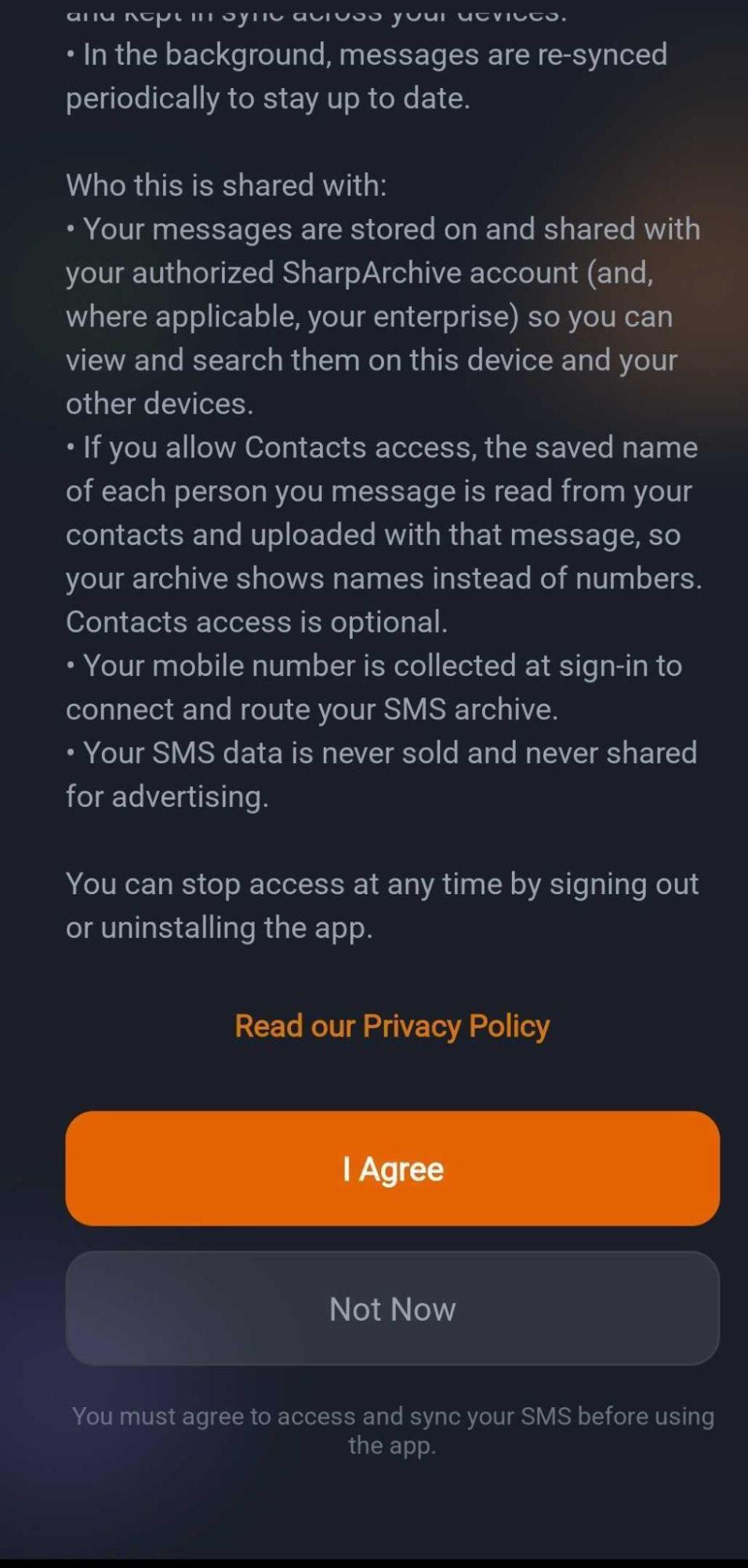
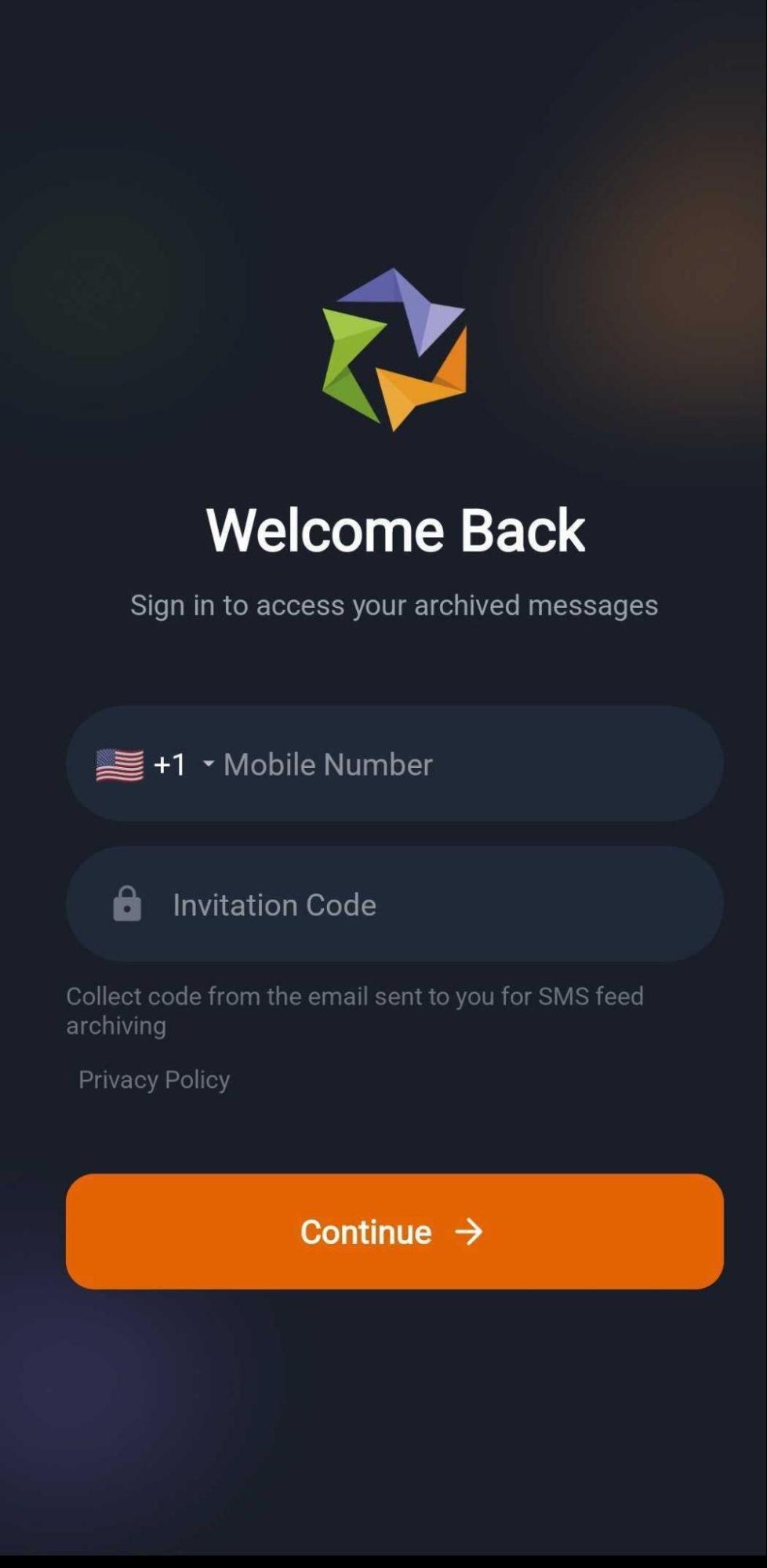
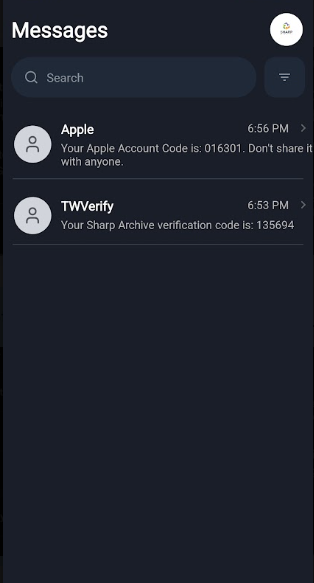
Connect Mobile Number
After connecting:
- Recent SMS messages will be fetched from all SIMs on your device.
- The messages will be uploaded to your Sharp Archive account.
- All incoming and outgoing SMS messages will continue to be synced and archived after connection.
Verify Archiving
Send and receive SMS messages and verify that they:
- Appear on the Home Page – from Viewer > SMS > Your Mobile Number
- Are archived on the Archive page
Disconnect
To stop syncing and archiving SMS messages to Sharp Archive:
- Go to Settings → Services in Sharp Archive and select Disconnect/Hide the connected SMS account. This will stop data syncing and archiving also.